Protoform for Live — Manual
Covers versions through 1.1.1. Ableton Live 12.4.5 or newer with Max for Live.
Protoform builds a 16-slot kit by drawing at random from folders you already own, and then renders what you play through it into separate audio tracks. It is not a sampler in the editing sense — there is no waveform editor, no slicing, no zone mapping. It is built for the part of writing where you have nothing yet.
Three stages, in order: point it at folders (pools), shuffle until the kit says something, extract the take into your arrangement.

The layout
Protoform is a single device strip at fixed Live height, growing horizontally. Everything is on one surface — there is no floating window and no tab bar.
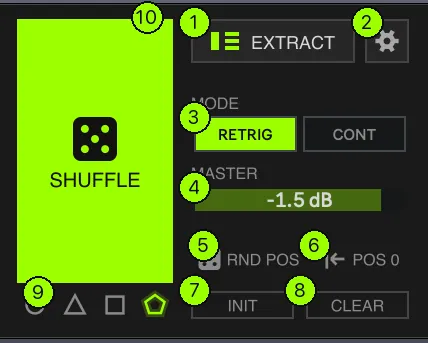
- Shuffle and global actions — SHUFFLE itself, the global playback mode, master level, random position, and the reset actions.
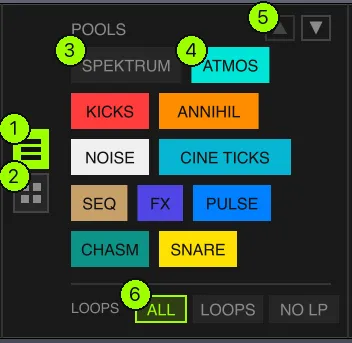
- Pools / kit column — switches between the pool enable list and the kit-wide sound settings. Both are kit-global, which is why they sit left of the pads.
- The 16 slots — mapped chromatically from C1 to D#2.
- Selected slot — identity — which note, which sample, folder browsing, and the per-slot switches.
- Selected slot — sound — envelope, mix, tuning, position and mode for that one slot. Three pages, switched by the icons at its left edge.
- Pool override — which pools this particular slot draws from.
The panel on the right always describes the selected slot only. Selecting a different pad changes everything from region 4 rightwards.
Setup — building pools
A pool is a named collection of one or more folders — “Trailer Hits” might be five folders from three different packs. Pools have a name, a colour and an enabled flag, and they index their folders recursively. That last part matters: a pool can point at a library root and act as a superset of your narrower pools, so there is no need for a special “All” pool. Every pool is equal.
Press ⚙ in the left column to replace the strip with the pool editor.
- ← — leaves Setup and returns to the instrument.
- + — creates a new pool.
- Trash — deletes the selected pool.
- ↻ Refresh — re-indexes this pool’s folders from disk, picking up files added since the last scan.
- ⚠ Full reset — resets everything, pools included.
- Pool rail — every pool with its colour and indexed file count. Click to select one for editing.
- Pencil — renames the pool. It opens a proper modal text field with the current name in it, with full cursor, selection and clipboard support.
- Colour — the pool’s colour. This is what you see on the pads later, so it is worth choosing deliberately.
- Folder — one folder in this pool. Remember the scan is recursive, so adding a parent folder brings everything beneath it. × removes the folder.
- + — adds another folder to this pool.
- File count — how many audio files this pool currently indexes.
The recursive scan is cached to disk, so large pools — fifteen thousand files and up — load instantly on subsequent starts. The cache is disposable; if it is ever damaged Protoform simply rescans.
Your pool library is device-global. Pool names, folders and colours are saved beside the device and loaded once at startup, so a new Protoform instance comes up with your library already configured. Which pools are enabled, by contrast, is part of the kit and saves with the Live set.

Shuffle and global actions
- EXTRACT — starts a stem extraction of the focused MIDI clip. Nothing opens in a separate window; the detail panel hands itself over to the run and gives it back when the run finishes.
- ⚙ — opens Setup.
- MODE — RETRIG / CONT — the kit-wide playback mode. Each slot can override it.
- MASTER — global output level in dB. It is applied to the render too, so stems are never louder than what you heard.
- RND POS — assigns a random start position to every unlocked loaded slot. Locked slots are protected, exactly as they are from SHUFFLE.
- POS 0 — an explicit reset. This one returns every slot to zero, locked slots included.
- INIT — slots and global settings back to default, pools kept.
- CLEAR — unloads samples only, keeping every per-slot setting.
- Draw strategy — four shapes deciding how a random sample gets picked. See below.
- SHUFFLE — redraws every unlocked slot at once.
INIT and CLEAR are both two-click arm-then-confirm, so neither fires by accident. FULL RESET, the third and widest level, lives in Setup.
In version 1.1.1, SHUFFLE also has a small chain in its lower-right corner for Linked Shuffle. The new control and its menu are shown in the next section.
Linked Shuffle — several instances together
Added in version 1.1.1.
The small chain cut into SHUFFLE’s lower-right corner decides whether this Protoform joins the linked group. It’s off by default. Click the chain to include or exclude this instance; when included, the corner lights up. Hover over it for a short explanation.
Alt-click the chain to open a list of running Protoform devices, labelled with their track and device names. Check the ones you want to move together. You can do this from any instance; the choice saves with each device’s kit and returns when you reopen the Live set.
Now press SHUFFLE on any included instance. Each checked Protoform redraws once, independently, from its own enabled pools and draw strategy. Loaded locked pads stay in place on every device. Unchecked instances do not change. If the chain is off on the device you press, SHUFFLE affects only that device.
For example, put drums, bass and textures on separate tracks with different pools. Link drums and textures, leave bass out, then press SHUFFLE on drums: the drum and texture kits each find a new combination while the bass kit stays as it was.


The four draw strategies
The strategy decides how Protoform reaches into your library for each sample. It applies to global SHUFFLE and to a single slot’s ROLL alike.
The difference only shows up when your enabled pools are uneven — one pool with 3,500 files and another with 50. Picture the four strategies as four different ways of drawing a raffle ticket.
FILE — every file has an equal chance. All eligible files from all enabled pools go into one hat, and one is pulled out. Simple, and biased by size: with a 3,500-file atmosphere pool enabled next to a 50-file kick pool, roughly seventy draws in seventy-one are atmospheres. Use it when your pools are roughly the same size, or when you genuinely want the big pool to dominate.
FOLDER — every folder has an equal chance. Protoform first picks one of the immediate parent folders, then a file from inside it. A folder of six hits and a folder of six hundred are equally likely to be chosen, so a small, carefully curated folder is no longer drowned out by a large dumping-ground one. This is the strategy that rewards a library organised into folders that mean something. Note that it groups folders across all your enabled pools at once — it ignores which pool a folder belongs to, so a pool made of forty folders contributes forty chances and a pool made of two contributes two.
POOL — every pool has an equal chance. The same idea one level up: pick one of the enabled pools at random, then a folder inside it, then a file. With four pools enabled, each slot has a one-in-four chance of coming from each, regardless of whether that pool holds fifty files or five thousand — and inside the pool it lands on, folder size does not skew the result either.
SPREAD — fill the kit evenly across pools. The only strategy that looks at the kit as a whole rather than treating each slot independently. On a global SHUFFLE it counts the locked pads you have kept, then distributes the remaining slots so every enabled pool is represented about equally. On a single ROLL it draws from whichever eligible pool is currently least represented in the rest of the kit. Where POOL gives you fair odds per slot — and so, by chance, sometimes hands you six atmospheres in a row — SPREAD guarantees the balance in the result. Reach for it when you want a kit with some of everything. Inside whichever pool it lands on it draws the same way POOL does, folder by folder.
Per-slot pool overrides constrain the eligible set in all four strategies: a slot restricted to your drums pool will only ever draw from drums, whichever strategy is selected.
Kit settings — pools view
The column left of the pads has two pages, switched by the two small icons on its left edge. Everything on both pages is kit-wide.
- POOLS view — this page.
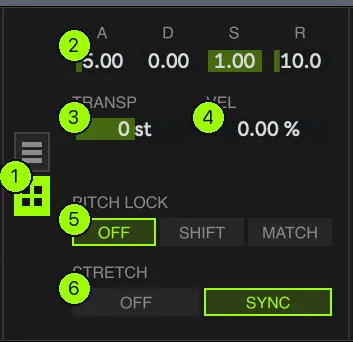
- KIT view — the sound settings page.
- A disabled pool — dim. It takes no part in shuffles.
- An enabled pool — filled with the pool’s colour.
- ▲▼ — the chip list windows and wraps rather than truncating; these scroll it, as does the mouse wheel.
- Loop filter — ALL, LOOPS only, or NO LP. A file counts as a
loop when its filename contains “loop” in any casing, or carries a valid BPM
tag between 40 and 260. So
Perc Loop 03.wavandDrum Groove 120BPM.wavboth read as loops, whileKick Solid.wavdoes not. The filter scopes global shuffle and per-slot roll, but it does not apply to slots that have their own pool override.
Kit settings — kit view
-
KIT view — this page.
-
ENV — attack, decay, sustain, release, applied kit-wide. The envelope is squared for a soft exponential landing, so a sustain value reads perceptually as its own square. The defaults reproduce the original fixed ramp.
-
TRANSP — master transpose in semitones. It is deliberately additive: the effective pitch of a slot is master transpose plus that slot’s own pitch.
-
VEL — global velocity response, 0–100%. At 0% note velocity does not change amplitude at all; at 100% gain follows velocity directly.
-
PITCH LOCK — OFF, SHIFT or MATCH. SHIFT conforms each tagged sample to the slot’s pitch class by the nearest ±6 semitones, folded into the slot’s playback rate. MATCH instead filters the next shuffle toward same-pitch-class files played unshifted, so there is no warping at all; it falls back to any sample rather than leaving a slot empty.
Note tags are read from the filename, and the token needs an accidental or an octave digit to count. So
Cello F3.wavandPad Bb.wavboth parse, whileCello F.wavdoes not — a bare letter is too easy to hit by accident, which is also why words like “Cello” and “Absynth” never parse as notes. Untagged samples are a silent no-op. -
STRETCH — OFF or SYNC. New kits start with SYNC on; saved OFF kits keep that choice. SYNC holds tempo-tagged loops at the set tempo without changing their pitch. The filename may contain an explicit tag, such as
Drum Groove 120BPM.wav, or a separated tempo suffix, such asSuper_Groove_122.wavorDrum Loop 88.wav(40–260 BPM). No tag means SYNC does nothing for that slot. Tempo changes are tracked live.
The slot grid
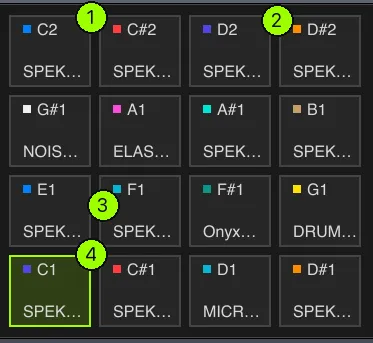
- A slot — one sample, triggered by its own note. The grid is mapped chromatically from C1 (MIDI 36) to D#2 (MIDI 51). Notes outside that range are ignored and empty slots are silent.
- Pool colour — the colour of the pool this sample was drawn from, recorded at the moment of the draw. A sample you placed by hand shows neutral grey.
- Sample name.
- The selected slot — outlined. Everything in the detail panel to the right describes this slot.
Double-clicking a pad rolls it — a quick way to reject one sample without leaving the grid or touching the detail panel.
While a slot plays, its pad stays lit in its source pool’s colour. Shuffling, rolling and double-clicking a pad also produce a short fading flash in that colour. Global SHUFFLE deliberately does not flash loaded locked pads, because it did not change them.
You can drag a sample straight onto a pad, Drum-Rack style, from Live’s browser or anywhere else. Dropping loads the sample, selects the pad and auto-locks it, on the reasoning that a deliberate placement should survive the next shuffle. The pad then shows the parent folder rather than a pool name.
Missing files are flagged, not hidden. If a sample’s path stops existing, the slot is marked with a red name on the pad and red badges in Setup. Playback and Extract both skip it, and the stale buffer is left untouched.
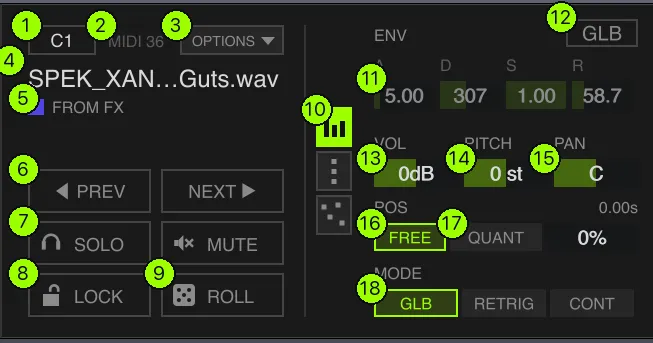
Slot settings — page one
The detail panel has three pages. The icons at its left edge switch between them.
- Note — which key triggers this slot.
- MIDI note number.
- OPTIONS ▾ — the slot settings clipboard. Alt-clicking a pad does the same.
- Sample name — hover it for about half a second and a panel floats up with the full name and path.
- Source pool — which pool supplied this sample.
- PREV / NEXT — steps alphabetically through the audio files in the current sample’s own folder, wrapping at both ends. It preserves every slot setting and works even while the slot is locked, exactly like an explicit ROLL.
- SOLO / MUTE — plain click on SOLO is exclusive, cmd-click is additive. Both gate in the controller rather than the signal path, so an inaudible slot is simply never triggered.
- LOCK — shields this slot from SHUFFLE. Everything unlocked gets redrawn around it while the locked sample stays where it is.
- ROLL — redraws this one slot. LOCK does not block it; ROLL is an explicit request, and lock exists to protect against the global shuffle.
- Page switcher — the three detail pages.
- ENV — this slot’s own envelope.
- GLB — follow the kit value. Every mirrored parameter has one. An override replaces the global value; it never stacks with it.
- VOL — volume as a dB offset from master.
- PITCH — semitones, added to master transpose.
- PAN — a balance law with unity at centre, not equal-power, so untouched sets sound exactly as they did before panning existed.
- POS — FREE — a continuous start position, displayed in seconds.
- POS — QUANT — snaps the start to straight, dotted or triplet divisions
from 1/32 up to a bar. BPM-tagged samples derive those divisions from their
own tag; untagged ones use Live’s tempo and show an
Hmarker. - MODE — GLB, RETRIG or CONT for this slot alone.
Position is stored proportionally, so a slot’s musical location survives a sample change and does not depend on the file’s length.
Slot settings — page two
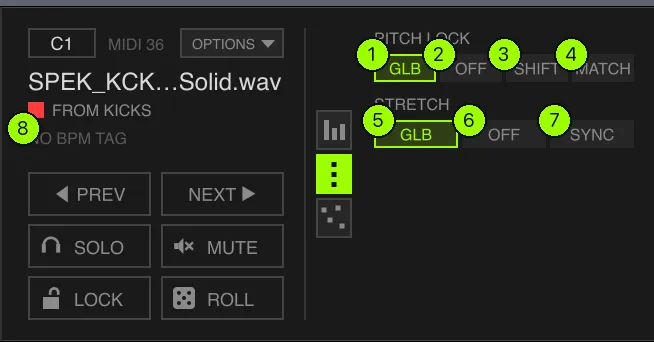
- Pitch lock — GLB — follow the kit setting.
- OFF — no conforming for this slot.
- SHIFT — conform this sample to the slot’s pitch class.
- MATCH — filter this slot’s next draw toward matching material.
- Stretch — GLB — follow the kit setting.
- OFF — play at the sample’s own tempo.
- SYNC — hold this sample at the set tempo.
- BPM readout — whether this sample carries a usable tempo tag.
NO BPM TAGmeans SYNC will do nothing here, and that is expected rather than a fault.
Slot settings — page three
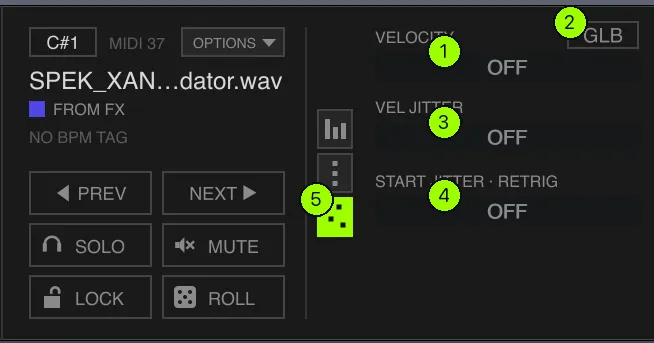
- VELOCITY — this slot’s velocity response amount.
- GLB — follow the kit value. An explicit SET 0 here is deliberately distinct from GLB, even when the global value happens to be 0.
- VEL JITTER — 0–100%. A fresh random draw on every note-on, folded within MIDI 1–127 before the velocity response law is applied. That ordering is why VEL JITTER has no audible effect while velocity response is at 0%.
- START JITTER — 0–100%, randomising where in the sample each note begins. It folds at the file edges rather than clamping repeatedly to the same boundary. It applies to RETRIG only — moving a continuous head on every gate would break the whole point of that mode.
- Page switcher.
Pool override
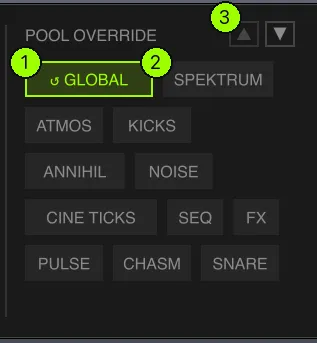
- ↺ GLOBAL — this slot draws from whatever the kit has enabled.
- A pool — restrict this slot to specific pools instead.
- ▲▼ — scrolls the list, which wraps rather than truncating.
This is how you get a kit that is mostly atmospheres with three slots that can only ever be drums. Note that the loop filter does not apply to a slot with its own override.
The slot settings clipboard, under OPTIONS ▾, copies a slot’s sound — playback mode, envelope, volume, pitch, pan, stretch override and pitch-lock override. It pastes onto one slot, or onto every slot sharing the same pool override, an option labelled in your own pool names. It never copies the sample, the pool override itself, LOCK, SOLO or MUTE, and it belongs to the editing session rather than the saved kit.
Retrigger and continuous
RETRIG restarts the sample from its position on every note. Classic one-shot and drum-rack behaviour.
CONT gives each slot its own independent, free-running read head that loops the sample continuously. Notes act as gates over that head, not as retriggers. The first note after transport start plays from the sample’s start; while held it loops; releasing silences it but the head keeps scanning underneath; a later note reveals the head wherever it has got to. Every head resets on transport stop.
That is the mode’s whole purpose: because every slot scans its own loop on its own advancing phase, gating different slots at different moments layers material into evolving combinations that always-from-zero retriggering cannot produce.
Volume, pan and pitch respond in real time in both modes.
Extract
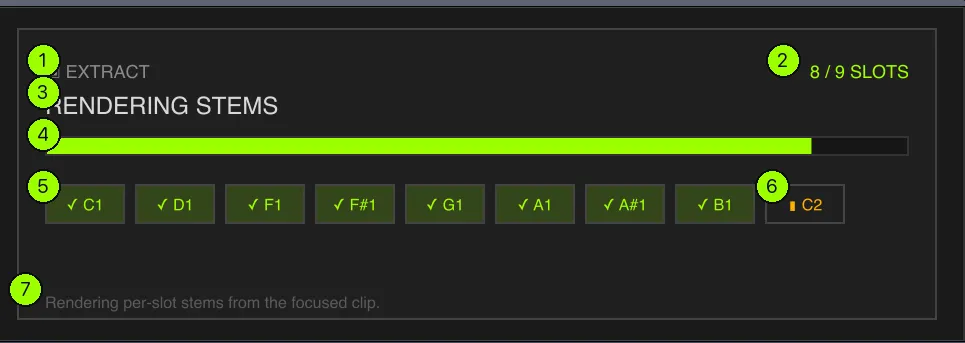
Extract plays the focused MIDI clip through the current kit and renders it back as per-slot audio — one clip per event — placed on new tracks in your set.
Its input is the clip’s visible region. Trimming a four-bar clip down to one bar without consolidating it extracts the one bar you can see; notes retained outside those bounds are ignored. A pre-scan before rendering tells you how many events were found, how many map to loaded slots, and how many are being ignored.
- EXTRACT — the panel takes over the detail area for the duration of the run.
- Slot count — how many slots this clip actually touches.
- Phase — pre-scan, rendering, placement, then ready. A failure surfaces here as a red CAN’T EXTRACT with a written reason, rather than as a silent no-op.
- Progress.
- A finished slot — ✓.
- The slot being rendered.
- Status line.
It requires a saved set. Extract refuses on an unsaved set and tells you to save first, rather than scattering rendered files somewhere unhelpful. Rendered files go to the Live project’s Samples folder.
Where the stems land depends on where the source clip is. An arrangement clip mirrors in place, at the absolute positions of the source events. A session clip places its events relative to the clip start, anchored at the insert marker — the playhead when stopped, and bar 1 as a fallback. One rule per source type.
The render is bit-identical to what you heard for every audible slot: master gain, per-slot mix and tuning, the envelope and pitch shifting are all folded in. Inaudible slots — empty, missing, muted, or silenced by someone else’s solo — are excluded entirely, with no stem, no track and no clip. Kit-level automation on MASTER, TRANSPOSE and the global envelope is captured across sounding notes and release tails, not just sampled at note onset. A slot with its own envelope override stays static and ignores global envelope automation, matching playback.
Two consequences worth knowing:
- Every event gets its own file, even repeated triggers of the same slot. They are not deduplicated into one shared source, so a destructive edit to one clip cannot silently alter the others.
- Each run is a fresh take, not a replay. Because live random outcomes are not recorded, a kit using velocity or start jitter renders a new, statistically equivalent humanisation rather than reproducing the audition you just heard.
Synced stems are rendered raw at the source tempo and placed as warped clips with that tempo pinned via warp markers — Live’s auto-warp is deliberately not trusted to detect it. Non-synced stems are placed warp-off and bit-exact.
Automation and limitations
The kit-level controls are real Live parameters. MODE, MASTER, TRANSPOSE and the four global envelope stages automate, follow their automation lane on touch, MIDI-map, and appear on Push.
The per-slot controls are not. Slot volume, pitch, pan and the per-slot envelope are drawn controls and carry no Live parameter. This is a deliberate limit rather than an omission: a Live parameter has a fixed identity whether or not it is currently on screen, so making all of them automatable would mean forty-eight parameter identities pointing at a panel that only ever shows one slot.
Multiple instances keep their own kits. Each Protoform owns private buffers and draws from its own enabled pools. SHUFFLE affects another instance only when both are included in Linked Shuffle (version 1.1.1 or later).
What saves where. Everything on the Setup page is device-global — your pool
library, in a file beside the device. Everything on the normal view is the kit and
belongs to the preset: global mode, master volume, global envelope, transpose,
stretch, pitch lock, loop filter, Linked Shuffle participation, which pools are
enabled, and every slot’s assignment and settings. Slots persist as paths,
not buffer references, so a set reopens by rebinding. Kits survive set save and
reopen, track duplication,
.adv browser presets and .alc Live Clips — a clip dragged to the browser
carries its device chain, so kit and slots come back together.
One known difference: extracted synced stems use Live’s warp engine while playback uses Protoform’s own timestretch. Tempo and pitch are correct in both, but the algorithms are not identical.
Troubleshooting
“I moved my sample folders and everything went red.” Slots store paths. Point the pool at the new location in Setup and press ↻ Refresh to re-index, then reshuffle. Missing slots are skipped rather than silently substituted, which is why they show rather than disappear.
“SYNC does nothing on this slot.” Check page two of the slot detail for
NO BPM TAG. Tempo is read from the filename: either an explicit tag such as
Drum Groove 120BPM.wav or a separated suffix such as Super_Groove_122.wav,
inside the 40–260 BPM range. Without one, SYNC is a deliberate no-op.
“Pitch lock ignores my samples.” Note tags need an accidental or an octave
digit. Cello F3.wav parses; Cello F.wav does not, because a bare letter is far
too easy to hit by accident — otherwise every word containing A through G would
turn into a pitch.
“VEL JITTER is set but nothing changes.” Velocity jitter folds into the velocity value before the response law. If VELOCITY is at 0%, velocity does not affect amplitude at all, so jittering it changes nothing audible. Raise VELOCITY.
“START JITTER does nothing in CONT.” It applies only to RETRIG. Continuous mode’s read head is free-running by definition; jogging it on every gate would break that.
“Extract refuses to run.” The set has to be saved first. The message says so rather than failing silently.
“Extract skipped a slot.” Empty, missing, muted or solo’d-out slots are excluded from the run entirely — no stem, no track, no clip.
“The same drum hit rendered twelve separate files.” Intended. Per-event files stay unique so that editing one clip never affects another.
Behaviour described here is Protoform for Live through 1.1.1. If something in the device disagrees with something here, the device is right — please tell me so this page can be corrected.